How to connect to remote desktop
In this article, we cover a simple but very practical task: how to connect to Remote Desktop. When you buy a VPS or a dedicated server, depending on its OS, you need a remote connection to the server as well as console access.
In the IT industry, “Remote Desktop connection” is a general term that usually means connecting to a Windows OS over the internet.
To connect with Remote Desktop, you need two things: your server’s IP address and the port. The default port is 3389. If your hosting provider has not changed this default port for security reasons, you do not need to add anything else.
If the port has been changed, enter your IP address and port in the format ip:port, for example: 98.34.87.2:5563
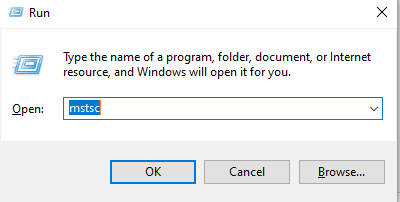
On a Windows server, press Win+R to open Run, then type mstsc. When the new window opens, type your IP.
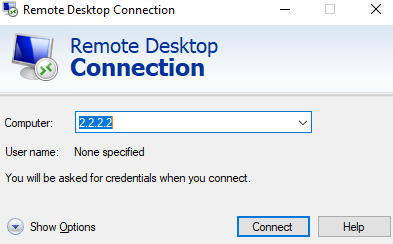
If everything is configured correctly, including firewalls and antivirus software on both sides, you will be asked for your login credentials: the username and password your admin gave you.
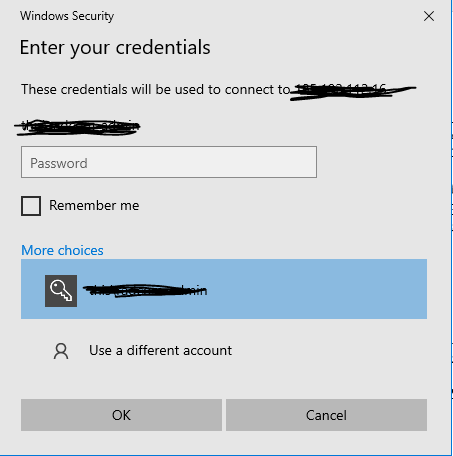
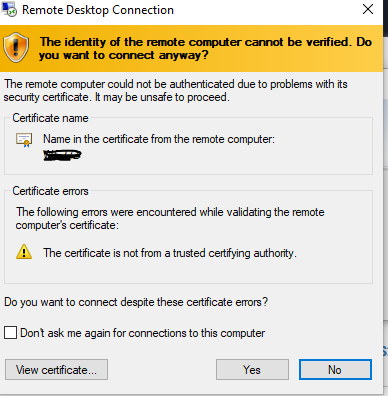
After you enter these details, you should see a certificate warning window. Click Accept to connect to the server.
If you get an error during these steps, first check your connection to the server with ping or tracert. If the connection is OK, check the ports and any ISP or OS filters that could interfere with the connection.
Once you are sure there are no restrictions on your side, contact your hosting provider and check the Microsoft website for common errors.