How to extend partition in windows
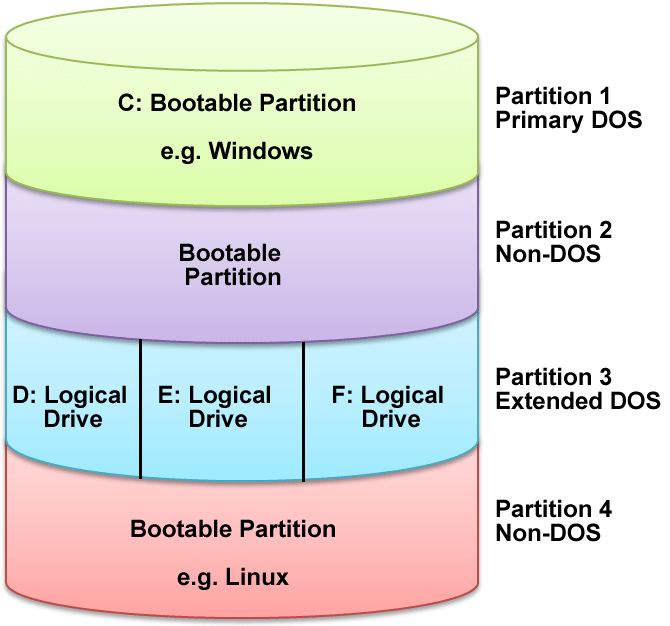
To extend a partition in Windows, first add the capacity you need, then decide how to add it, keeping in mind Windows’ limitations for extending partitions. We have also covered this topic for Linux.
You can increase capacity in two ways: extend an existing volume or add a whole new disk.
- Adding a new disk: a new disk (physical or virtual) is added to the server and used as a new drive.
- Extending a partition: capacity is added to an existing drive. This is the usual scenario in virtualization, where you can customize the disk size.
To extend a partition in Windows on a virtual machine, first right-click the machine (already powered off) and enter the new size for its hard disk. Once you start the machine, follow the steps below.
Remember: to extend a partition in Windows, the new space must be next to the partition you want to extend. Look at the picture below.
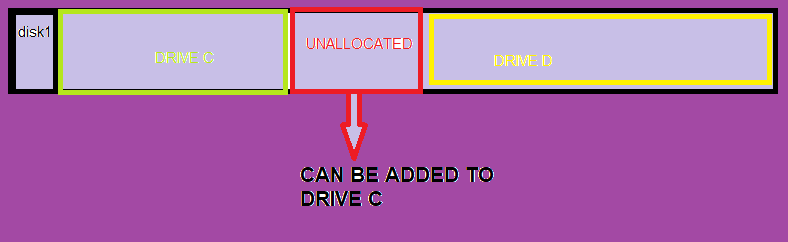
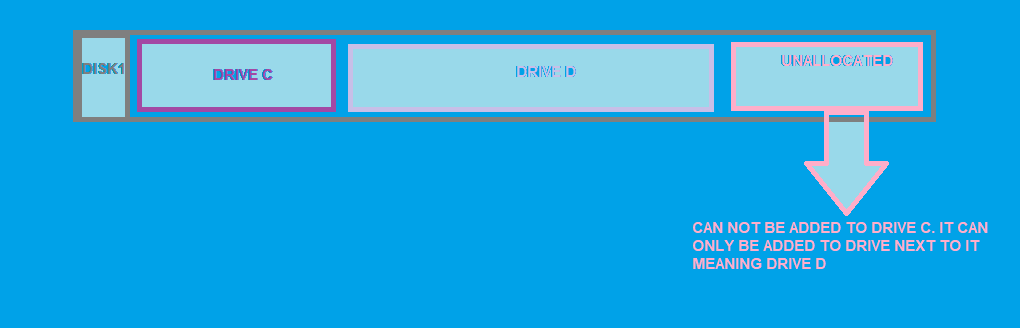
Once you have added the new capacity, a few changes are needed in the operating system. Open Run and type diskmgmt.msc.
In this console, select Action and rescan hardware. You should now see the new capacity. Click Bring Online and then Initialize Disk.
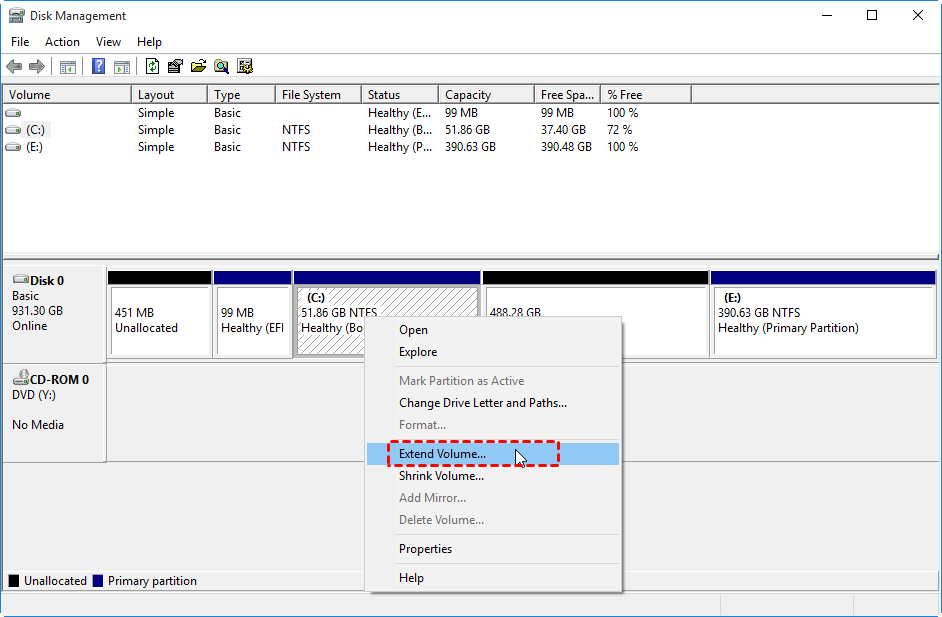
Now right-click it and run the New Partition Wizard or Extend Volume.