How to Connect to a Linux Desktop and Install Google Chrome
Key points
- A Linux VPS can run a full desktop that you open from any computer with Remote Desktop (RDP).
- XFCE plus
xrdpis the lightest combination that works well over the internet. - Chrome installs from Google’s official package: a
.debfor Ubuntu and Debian, an.rpmfor AlmaLinux and Rocky Linux. - Both packages add Google’s repository, so Chrome then updates with the rest of the system.
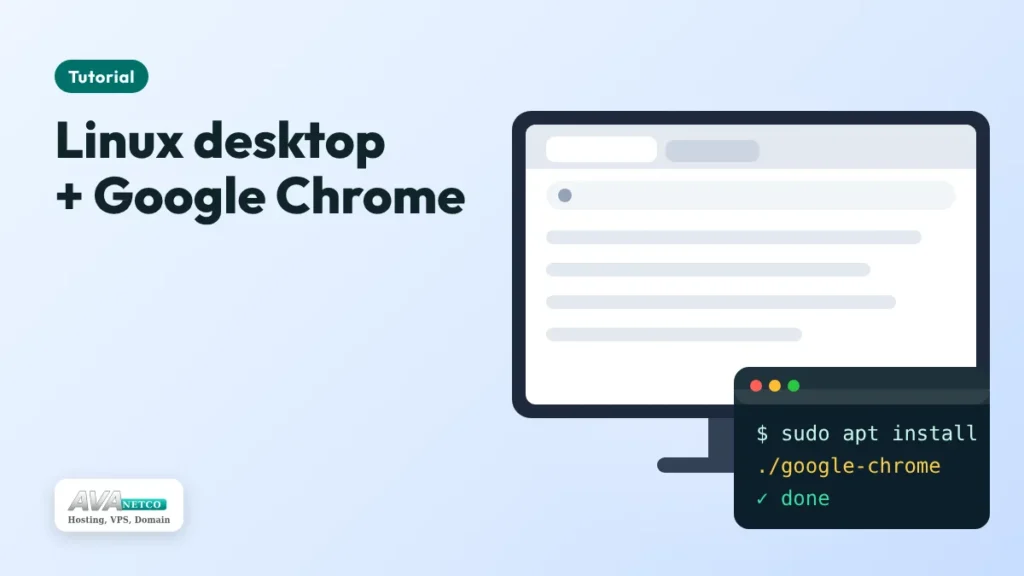
Plenty of jobs are easier with a real browser on a server: managing ad accounts from a fixed IP address, testing a site from another country, running browser-based tools around the clock, or simply working from a machine that stays on. This guide sets up a lightweight desktop on a Linux VPS, connects to it with Remote Desktop, and shows how to install Chrome on Linux from the official package.
What you need
- A Linux VPS with Ubuntu 22.04/24.04, Debian 12, AlmaLinux or Rocky Linux 9, and root or sudo access.
- At least 2 GB of RAM. Chrome alone uses several hundred megabytes with a few tabs open.
- A 64-bit x86 server. Google’s Linux builds are not available for ARM.
- A Remote Desktop client: built into Windows, free apps for macOS, Android and iOS.
Part 1: Install a desktop and Remote Desktop
Ubuntu and Debian
sudo apt update
sudo apt install -y xfce4 xfce4-goodies xrdp dbus-x11
echo "xfce4-session" > ~/.xsession
sudo adduser xrdp ssl-cert
sudo systemctl enable --now xrdp
AlmaLinux and Rocky Linux
sudo dnf install -y epel-release
sudo dnf groupinstall -y "Xfce"
sudo dnf install -y xrdp
echo "xfce4-session" > ~/.Xclients && chmod +x ~/.Xclients
sudo systemctl enable --now xrdp
Open the port, but only for you
Remote Desktop listens on TCP port 3389. Leaving it open to the whole internet invites password guessing, so allow only your own IP address:
# UFW (Ubuntu / Debian)
sudo ufw allow from YOUR.IP.ADDRESS to any port 3389 proto tcp

# firewalld (AlmaLinux / Rocky)
sudo firewall-cmd --permanent --add-rich-rule='rule family="ipv4" source address="YOUR.IP.ADDRESS" port port="3389" protocol="tcp" accept'
sudo firewall-cmd --reload
If your IP changes often, connect through an SSH tunnel instead and keep 3389 closed: ssh -L 3389:localhost:3389 user@server, then point the Remote Desktop client at localhost.
Create a normal user for the desktop
Do not log in to the desktop as root. Create a user and give it a strong password:
sudo adduser deskuserConnect
- Open Remote Desktop Connection on Windows (
mstsc), or the Remote Desktop app on macOS, Android or iOS. - Enter the server’s IP address (or
localhostwhen tunnelling). - Log in with the user you created. The XFCE desktop appears.
Part 2: Install Google Chrome
Open a terminal on the desktop, or use SSH. Both work.
Ubuntu and Debian
cd /tmp
wget https://dl.google.com/linux/direct/google-chrome-stable_current_amd64.deb
sudo apt install -y ./google-chrome-stable_current_amd64.deb
Using apt install ./file.deb instead of dpkg -i pulls in missing dependencies automatically.
AlmaLinux and Rocky Linux
sudo dnf install -y https://dl.google.com/linux/direct/google-chrome-stable_current_x86_64.rpmCheck the installation
google-chrome --versionChrome now appears under Applications → Internet in the XFCE menu. Both packages register Google’s repository, so future updates arrive with apt upgrade or dnf upgrade.
Tips for a smooth remote browser
- Lower the colour depth to 16-bit in the Remote Desktop client on slow connections.
- Turn off hardware acceleration in Chrome (Settings → System) if pages flicker. A VPS has no GPU.
- Keep the session alive: closing the Remote Desktop window disconnects without logging out, so Chrome keeps running.
- Headless use: for automation, Chrome runs without a desktop at all:
google-chrome --headless --screenshot https://example.com.
Troubleshooting
| Problem | Fix |
|---|---|
| Black screen after login | Check ~/.xsession contains xfce4-session, and log out of any other session for that user. |
| Connection refused | Confirm systemctl status xrdp and that port 3389 is allowed from your IP. |
| Chrome closes when starting as root | Run it as a normal user, which is also safer. |
| Very slow desktop | Use XFCE rather than GNOME, and give the VPS at least 2 GB of RAM. |
A VPS in the right country gives your remote browser a local IP address there. Our VPS locations cover dozens of countries with full root access, and Windows servers are available if you prefer a Windows desktop.