Linux VPS Security Checklist 2026: 12 Steps for a New Server
Key points
- Most VPS break-ins use something simple: an unpatched package, a guessed password or a service nobody remembered was public.
- SSH keys, automatic security updates and a default-deny firewall stop the large majority of these attacks.
- Installing updates is not the end. Services need a restart and a new kernel needs a reboot before the fix is active.
- Commands below cover Ubuntu and Debian as well as AlmaLinux and Rocky Linux.
A new VPS is on the public internet from the moment it boots, and automated scanners will find it within minutes. This Linux VPS security checklist is the list we would work through on any fresh server, in this order. Recent months gave plenty of reasons to take the first hour seriously: a critical bug in the PHP engine, an OpenSSH login bypass on Alpine, and a remote Linux TCP bug. Each of them was either blocked or made much less dangerous by one of the steps below.
1. Update everything and reboot
Images are built weeks or months before you use them, so the first job is to bring every package up to date and boot into the newest kernel.
# Ubuntu / Debian
sudo apt update && sudo apt full-upgrade -y && sudo reboot

# AlmaLinux / Rocky Linux
sudo dnf upgrade -y && sudo reboot
2. Create a normal user with sudo
Working as root all day turns every typo into a disaster. Create your own user and give it sudo rights:
# Ubuntu / Debian
sudo adduser deploy
sudo usermod -aG sudo deploy

# AlmaLinux / Rocky Linux
sudo adduser deploy && sudo passwd deploy
sudo usermod -aG wheel deploy
3. Log in with SSH keys and turn off passwords
SSH keys cannot be guessed the way passwords can. On your own computer, create a key and copy it to the server:
ssh-keygen -t ed25519
ssh-copy-id deploy@your-server-ip
When the key login works, disable password logins and direct root logins on the server:
# /etc/ssh/sshd_config (or a file in /etc/ssh/sshd_config.d/)
PasswordAuthentication no
KbdInteractiveAuthentication no
PermitRootLogin no
sudo sshd -t && sudo systemctl restart ssh # the service is "sshd" on AlmaLinux and RockyKeep your current session open and test a new login in another window before you close it. Key-only SSH is exactly the setting that made the recent OpenSSH bypass on Alpine harmless.
4. Turn on automatic security updates
Security fixes are only useful once they are installed. Let the server install them on its own:
# Ubuntu / Debian
sudo apt install unattended-upgrades
sudo dpkg-reconfigure -plow unattended-upgrades

# AlmaLinux / Rocky Linux
sudo dnf install dnf-automatic
sudo sed -i 's/^upgrade_type.*/upgrade_type = security/; s/^apply_updates.*/apply_updates = yes/' /etc/dnf/automatic.conf
sudo systemctl enable --now dnf-automatic.timer
5. Restart services after updates
A patched library on disk does not help a process that loaded the old one. After the PHP2Shell fixes, for example, servers that updated PHP without restarting PHP-FPM stayed vulnerable. Check which services still run old code:
# Ubuntu / Debian
sudo apt install needrestart
sudo needrestart -r l     # list only; use -r a to restart automatically

# AlmaLinux / Rocky Linux
sudo dnf needs-restarting -s
6. Reboot when the kernel changes
A new kernel is only used after a reboot. Find out whether one is waiting:
# Ubuntu / Debian
[ -f /var/run/reboot-required ] && cat /var/run/reboot-required

# AlmaLinux / Rocky Linux
sudo dnf needs-restarting -r
Pick a fixed weekly window, such as Sunday night, and reboot when the check says so. On a KVM VPS you run your own kernel, so nobody else can do this for you.
7. Set up a default-deny firewall
Block everything, then open only what the server needs:
# Ubuntu / Debian (UFW)
sudo ufw default deny incoming
sudo ufw default allow outgoing
sudo ufw allow OpenSSH
sudo ufw allow 80,443/tcp
sudo ufw enable

# AlmaLinux / Rocky Linux (firewalld)
sudo firewall-cmd --permanent --add-service=ssh
sudo firewall-cmd --permanent --add-service=http --add-service=https
sudo firewall-cmd --reload
If only you and your team use SSH, allow port 22 from your own IP addresses only.
8. Block repeated login attempts with Fail2ban
Fail2ban reads your logs and bans IP addresses that keep failing to log in.
# Ubuntu / Debian
sudo apt install fail2ban

# AlmaLinux / Rocky Linux
sudo dnf install epel-release && sudo dnf install fail2ban
# /etc/fail2ban/jail.local
[sshd]
enabled = true
maxretry = 5
bantime = 1hsudo systemctl enable --now fail2ban
sudo fail2ban-client status sshd9. Find out what is listening
Every open port is something an attacker can talk to. List them:
sudo ss -tulpnDatabases (3306, 5432, 6379, 27017) should normally listen on 127.0.0.1 only. Remove or disable anything you do not recognise or do not need:
sudo systemctl disable --now service-name10. Keep runtimes on supported versions
Operating system updates do not move you to a new major version of PHP, Node.js or Python. Old branches simply stop getting fixes. As of late 2026, that means at least:
- PHP 8.2 or newer. PHP 8.1 and older got no official fix for PHP2Shell.
- Node.js 22, 24 or 26. Node.js 20 is end of life and missed the October 2026 security release.
- A database version that is still inside its vendor’s support period.
11. Back up off the server and test a restore
A backup stored on the same VPS disappears together with the VPS. Keep copies somewhere else, for example on a second server or in object storage, and automate them. A simple nightly job for files and a MySQL database:
#!/bin/sh
d=$(date +%F)
mysqldump --single-transaction --all-databases | gzip > /backup/db-$d.sql.gz
tar -czf /backup/www-$d.tar.gz /var/www
rsync -a --delete /backup/ backup@backup-host:/srv/backups/$(hostname)/
Every few months, restore a backup to a spare server and check that the site actually works.
12. Watch the logs and get alerts
You cannot react to what you never see. At a minimum, check these regularly or send them to a monitoring tool:
sudo journalctl -p err -b                 # errors since the last boot
sudo journalctl -u ssh --since today      # SSH activity (sshd on AlmaLinux / Rocky)
sudo last -a | head                       # recent logins
Add an external uptime check and a disk-space alert. A full disk breaks more servers than most attacks do.
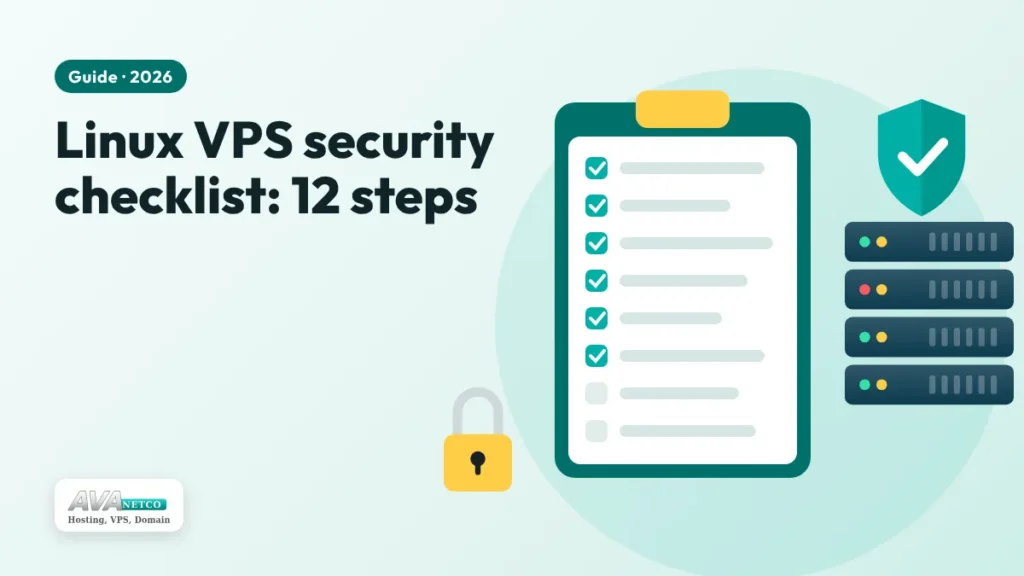
The checklist at a glance
| # | Step | How often |
|---|---|---|
| 1 | Full update and reboot | Once, at setup |
| 2 | Normal user with sudo | Once |
| 3 | SSH keys, no passwords, no root login | Once |
| 4 | Automatic security updates | Once, then automatic |
| 5 | Restart services after updates | After each update |
| 6 | Reboot for new kernels | Weekly window |
| 7 | Default-deny firewall | Once, review quarterly |
| 8 | Fail2ban for SSH | Once |
| 9 | Review open ports | Monthly |
| 10 | Supported PHP, Node.js and database versions | Twice a year |
| 11 | Off-server backups and restore tests | Daily backups, quarterly tests |
| 12 | Log review and alerts | Weekly |
Need a clean server to start from? Our KVM VPS plans come with full root access in dozens of countries, and you can pay by card, PayPal or crypto. If you would rather not manage a server at all, Linux hosting with cPanel takes care of updates for you.